Setting Up Plant3D Plugin
Getting Started
The EdgeWise Plant3D Plugin allows you to import your data from EdgeWise into an active Plant3D project. At this time, Plant3D can only import .c3p3d files that have been standardized in EdgeWise using the ASME or DIN specs. These specs and the EdgeWise Import Add-in will be added to Plant3D automatically when installing EdgeWise with the Plant3D checkbox checked.
EdgeWise Export
To export your EdgeWise data as a .c3p3d file, go to the File tab and select the Export button. In the drop down, select Pipes -> Plant3D Format. In order to achieve the best results when exporting your data, please ensure that all existing data has been standardized using the ASME or DIN_BS specifications. EdgeWise will automatically resize any elbows with a radius ratio other than 1.5 to the appropriate radius for a Socket Weld (if available) or Short Radius elbow.
Plant3D Import
To begin, the Plant3D project file must be already set up in the matching spec as the spec selected in EdgeWise.
- For ASME standard in EdgeWise, the Plant3D project will need to be setup in imperial units.
- For DIN standard in EdgeWise, the Plant3D project will need to be setup in metric units.
Once confirmed that the Plant3D project is in the correct units, expand the Pipe Specs tree within the Project manager, find the EdgeWise ASME or EdgeWise DIN spec, right click it, then click Set as Current Spec.
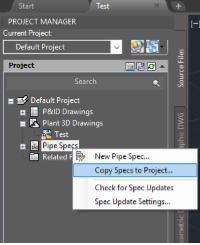
Fig 1: Selecting the EdgeWise Plant3D Spec
Finally, select the Add-ins tab then click the Import Model button found within the EdgeWise section. Find your .c3p3d file then click Open.
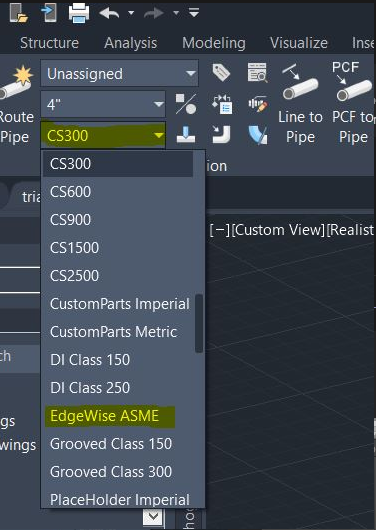
Fig 2: Import Model Button
During the import process, the view will be zoomed into a small region to reduce the load time devoted to re-rendering the model as each part is added. At the end of the import, the view will be zoomed out to encompass the loaded parts.