Licensing
This article covers creating and signing in with a ClearEdge3D Account.
To download the latest version of EdgeWise, click here for direct download, or visit our Software Updates page.
For most users, the default installer settings provide all necessary components.
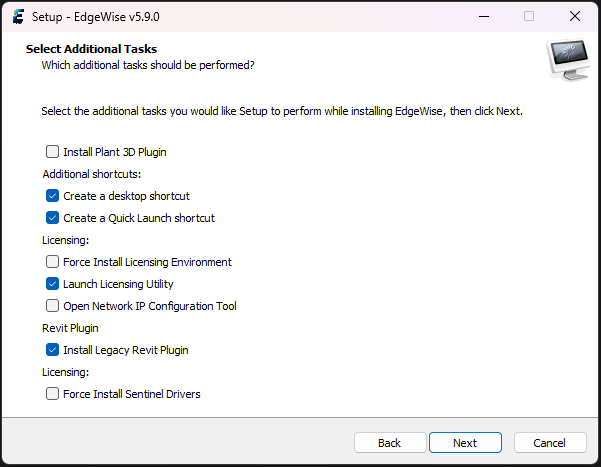
Fig 1: Select Additional Tasks
Additional options include:
Ensure you have downloaded the EdgeWise installer from our website, and take note of where the installer is located on your machine. Please note you will need administrator rights to complete a silent install.
Command Prompt
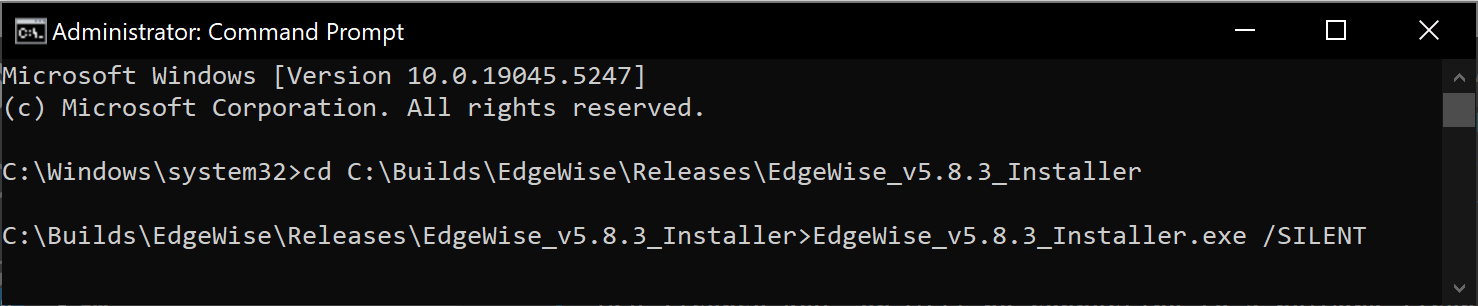
Fig 2: Silent Install
You can also add other tags for additional functionality - to view some of these tags, visit this external link. The /SILENT tag will hide all dialogue boxes relating to the install and will only show an installation progress icon on the task bar. It is also important to note that a silent install will install EdgeWise for all users on the machine machine.
During the silent install, there will be folders named ClearEdge3D and EdgeWise created in your Program Files on your machine. These folders and their contents are required to stay in their set locations and unedited for EdgeWise to function correctly.
Silently Install an EdgeWise License
In order to silently install a software license for EdgeWise, first ensure that you have installed EdgeWise on your machine.
.\EdgewiseLicenseInstaller.exe /APPLYCODE="
If you experience difficulty or unexpected behavior when installing EdgeWise, please reach out to Support@ClearEdge3D.com with screenshots of any error messages.
This article covers creating and signing in with a ClearEdge3D Account.
This section of articles covers License activation and troubleshooting suggestions.