Custom Standards - Piping
Getting Started
This article will cover how to create custom standards for your piping models in EdgeWise. For some projects, you may require standards that EdgeWise does not include by default. In this case you will want to add your own custom standards using the Pipe Standard Editor tool within EdgeWise. Custom Standards will not export over to certain deliverables. If you are exporting with the Plant3D, PCF, or PDMS formats, some of your custom items WILL NOT export to your deliverable. For these formats, you must use ASME or DIN default specs within EdgeWise. Additionally, we do not support custom valves or flanges for these export options.
Export a Reference Standard
First, begin by exporting an existing standard within EdgeWise. Click on the Piping tab, then click Export Pipe Spec button located in the Project section. The Export Pipe Spec dialog will open.
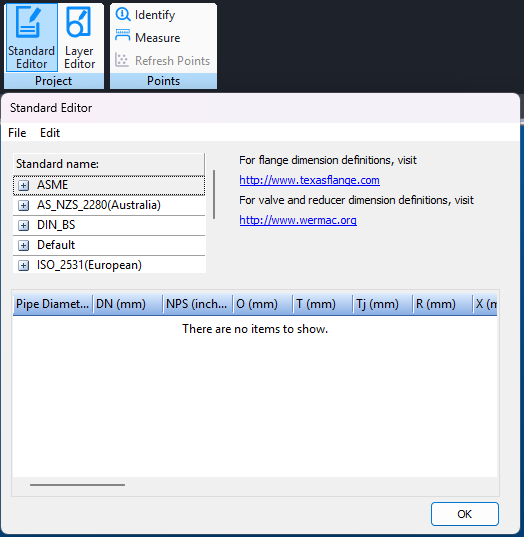
Fig 1: Export Pipe Spec
Next, select the Spec and Pressure Rating that you would like to use as a reference. Then, click the Export button. This will save a .csv file that you can now edit. Open the .csv file and make any edits necessary for your custom standard. Once completed, you will need to import this standard back into EdgeWise.
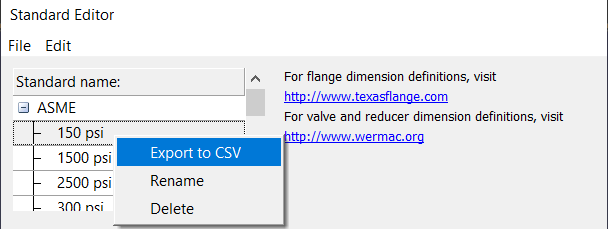
Fig 2: Export Pipe Spec Dialog
Open the CSV file after saving and make your edits necessary for your custom standard. Once completed, you’ll need to import that new standard back into EdgeWise.
Importing Your New Standard
Start by clicking the Import Pipe Spec button located within the Project section.
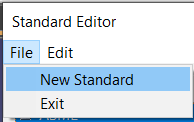
Fig 3: Import Pipe Spec
Once you select the .csv file, you will create a name for the new spec.
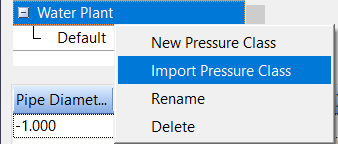
Fig 4: Naming Custom Spec
After naming the spec, you will then name the pressure rating.
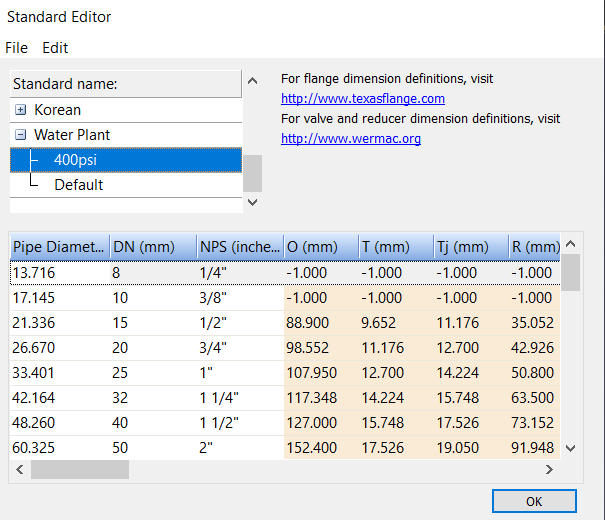
Fig 5: Naming Custom Pressure Rating
Once complete, you should receive a success dialog.
Now you should be able to open the Chain Info Smart Sheet and see your newly imported spec as one of the options within the Standard dropdown menu.
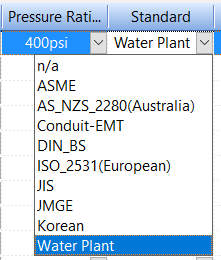
Fig 6: Successful Standard Change in Chain Info Smart Sheet
To see or modify any custom standards that have been applied to EdgeWise, you can use the Open Spec Folder button located within the Project section. This will open a file explorer directly to the custom standards location.
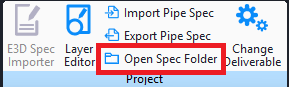
Fig 7: Open Spec Folder
E3D Spec Importer
If your deliverable is set to E3D, the E3D Spec Importer button will be available for use. Before importing a spec for E3D, you will need to have exported a spec from AVEVA E3D using the EdgeWise Plugin. Once you have the E3D spec, this button functions the same way as the Import Pipe Spec button does above.
Important notes regarding Custom Pipe Standards:
- Custom Valves and flanges will only export into AutoCAD.
- Do not change or edit the number or Columns in the spreadsheet.
- Specifically, do not add or remove any of the different valves.
- Once a standard is applied, those changes cannot be overridden by applying a different spec. Applying a spec will adjust a pipe’s diameter; this essentially rounds off the decimal places to the closest nominal pipe size. Once this has been done once, it cannot be done again. Ensure you apply the correct spec the first time, and Save As before starting to apply standards. Also ensure you Save As often during this process.
- For any empty slots in your custom standard, insert -1.0 and EdgeWise will ignore that slot.
The different columns for the valves only represent the length of the valve. The flanges are represented based on the Texasflanges website that is linked in the editor.
Pro Tip: Create a custom “conduit” standard to apply to all of your conduits in the pipe model