Offline Licensing
Fully Offline License Setup
By request, an EdgeWise license can be created and used without internet connection (typically required for login). To arrange this, you will need to work with your sales rep and our Licensing team to get the license configured correctly. This will be done through a series of file transfers, so at least one machine that can access the internet will be necessary to send and receive the necessary files. The instructions below will help walk you through getting the offline license configured.
Collecting License File Information
First, ensure that you install the ClearEdge3D Offline License Tool (provided as necessary/by request) BEFORE installing EdgeWise. Once you have the License Tool installed, open it, and click the Collect License File Information button.
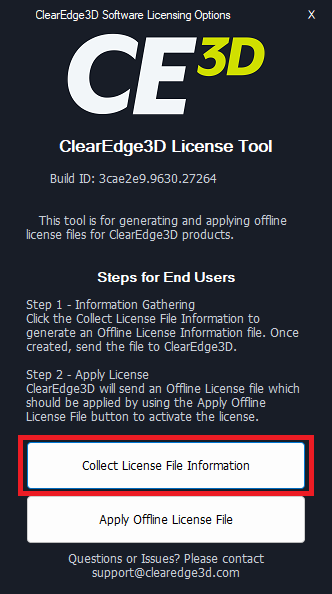
Fig 1: Collect License File Information
You will then save the .c3dlic file to a location of your choice then send this to Licensing@ClearEdge3D.com with the subject line “Offline License File”. Our Licensing team will then format this license with your license information and send back a .c3djwt file.
Applying the Offline License File
You will need to apply the .c3djwt license file sent by our licensing team by clicking the Apply Offline License File button. This will then activate the offline license on the machine.
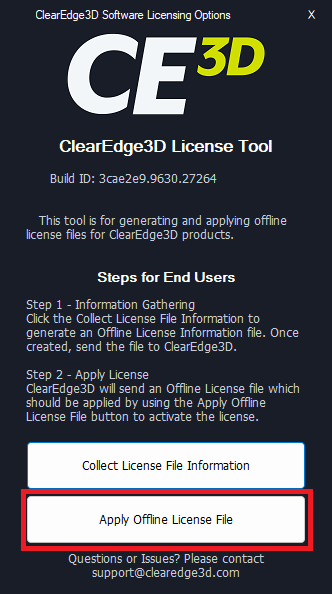
Fig 1: Apply Offline License File
Once the above is completed, you should receive a “Success” message and then be able to access the software without an active internet connection.
Please note that this style of License is locked to the machine that generated the .c3dlic file and applied the .c3djwt file, and is held locally. If applying an offline license on a VM, ensure it is applied to an image that will not be lost or overwritten.
If at any point you have any questions or issues, please contact Support@ClearEdge3D.com for assistance.
Retained License Setup
For a Retained license setup, you can choose to retain the EdgeWise license when closing EdgeWise. To do this, first navigate to the Licensing tab. Then, click the the Retain License on Exit checkbox. Now when you close EdgeWise, you will retain the license for 7 days or until you choose to Logout. Please note that while the license is retained, you will not be able to use the license on another computer unless you have purchased multiple seats on the license.
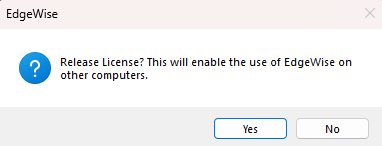
Fig 3: Retain License on Exit button