Options Tab
Galleries
Background Color
Allows you to adjust the colorization of the 3D working space within EdgeWise.
Ribbon Style
This will adjust the style of the ribbon.
Display
Manual Refresh
When navigating the point cloud in EdgeWise, points in the active view will be refreshed automatically. For larger point clouds, or slower computers, this can cause low frame rates and slow rendering.
Checking the Manual Refresh option can speed these processes by waiting for user input before refreshing the points, instead of doing so automatically.
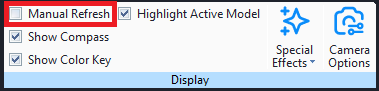
Fig 1: Manual Refresh button
This option dramatically speeds up the navigation, making it instantaneous. However, it does require manually refreshing the points periodically – either by clicking the Refresh Points button in the Model tab or by pressing its hotkey, Enter.
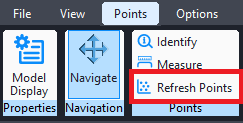
Fig 2: Refresh Points Button
Units
Metric/Imperial Units
This dropdown will show all the units that can be used within EdgeWise. This will also adjust which units are being used in the Process Scans Options. You may swap these units at any point in your workflow and EdgeWise will convert them as necessary.